Table of Contents
Introduction: Why Your iPhone Deserves a Reliable Data Transfer Cable
In an era where smartphones hold the entirety of our digital lives—from photos and messages to apps and financial records—transferring data between devices is no longer a luxury, but a necessity. For iPhone users, this process often hinges on a single, unassuming tool: the data transfer cable. Far more than just a charging cord, these cables are the unsung heroes of device connectivity, bridging old and new iPhones, syncing memories across generations of technology, and ensuring that no byte of data is lost in the upgrade cycle. This article delves into the evolution, types, and critical considerations of iPhone data transfer cables, offering insights to help users make informed choices that align with their needs.
The Evolution of iPhone Data Transfer Cables: From 30-Pin to USB-C
The Early Days: 30-Pin Connectors and Proprietary Standards
Before the iPhone 5 (2012), Apple relied on a 30-pin dock connector, a bulky, rectangular port that dominated iOS devices for nearly a decade. These cables were not just for charging—they transferred data, synced calendars, and even powered older accessories like speakers or car kits. However, their size and lack of standardization limited compatibility, prompting Apple to rethink its approach.
Lightning: A Compact Revolution
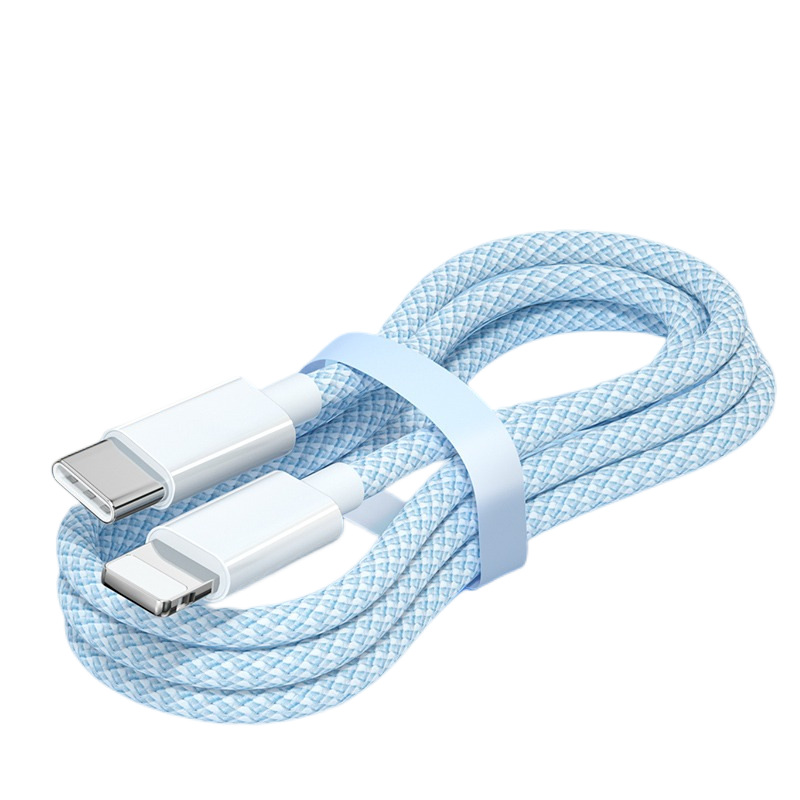
With the iPhone 5, Apple introduced the Lightning connector—a smaller, reversible port that doubled as a data transfer cable. This shift marked a turning point: Lightning cables supported faster data transfers (up to 480 Mbps) and could be used with a wider range of accessories, from headphones to external storage. Yet, their proprietary nature sparked debates about consumer choice, especially as Android devices adopted universal USB standards.
USB-C: The Cross-Platform Standard
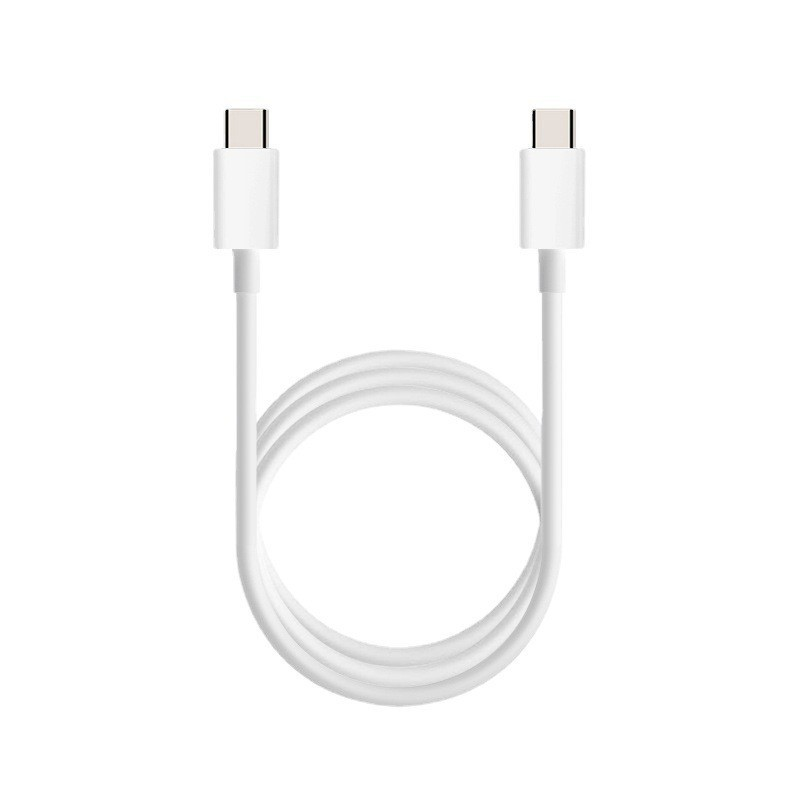
In 2023, with the release of the iPhone 15 series, Apple finally embraced USB-C, aligning with global standards for data transfer and charging. This move not only simplified things for users (no more searching for Lightning-specific cables) but also unlocked faster speeds—up to 10 Gbps with USB 3.2—and improved compatibility with laptops, tablets, and other devices. For many, this transition represents the future of iPhone data transfer, blending convenience with versatility.
Choosing the Right iPhone Data Transfer Cable: Key Considerations
Speed vs. Purpose: What Transfer Rate Do You Need?
Not all data transfer cables are created equal. Basic Lightning or USB-C cables often support “charge-only” speeds, meaning they can power your phone but transfer data at a snail’s pace—barely enough to sync small files. For users who frequently move large photos, videos, or backups, however, high-speed cables are essential. Look for labels like “USB 3.2” or “SuperSpeed” (for Lightning) to ensure transfers that keep up with modern demands.
Compatibility: Matching Your iPhone Model and Ecosystem
An iPhone 12 using a USB-C cable? Unlikely, unless it’s a third-party adapter. Compatibility is critical. Older iPhones (pre-15) require Lightning cables, while newer models need USB-C. Beyond that, check if the cable supports your device’s specific features—some third-party cables may lack the necessary chips to enable fast charging or full data transfer, leaving you with a subpar experience.
Durability: Build Quality Matters
A flimsy cable that frays after a few months of use is more than an inconvenience—it’s a risk to your data. High-quality cables feature reinforced connectors, braided exteriors, and strain relief at the base to withstand daily wear and tear. While these may cost more upfront, they save money in the long run by avoiding frequent replacements and potential data loss from damaged ports.
Third-Party vs. Original: Weighing the Pros and Cons
Apple’s original cables are reliable, but they come with a premium price tag. Third-party brands, from trusted names like Anker to budget options, often offer similar performance at lower costs. However, not all third-party cables are created equal. Look for certifications like MFi (Made for iPhone) to ensure compatibility and safety—unauthorized cables may damage your device or fail to transfer data reliably.
Common Data Transfer Woes and How to Avoid Them
The “Connecting but Not Transferring” Dilemma
You plug in your cable, the phone recognizes the connection, but files refuse to move. This issue often stems from outdated software or faulty cables. Start by restarting both devices, checking for iOS updates, and testing the cable with another device. If problems persist, the cable may have a damaged internal wire—time to replace it.
Slow Transfers: When Patience Isn’t a Virtue
Transferring a 20GB video library over a “charge-only” cable can take hours. To speed things up, use a high-speed USB 3.2 cable and ensure both devices are connected to a power source (this stabilizes the connection). For even faster transfers, consider wireless solutions like AirDrop or iCloud, though these rely on Wi-Fi and may not be ideal for large files.
Port Damage: Protecting Your iPhone’s Lifeline
Rough handling can damage the Lightning or USB-C port, making data transfer impossible. Avoid yanking the cable out forcefully, and never insert it at an angle—this can bend the port’s internal pins. If damage occurs, Apple’s Genius Bar or a certified repair shop can often fix it, but prevention is always better than cure.
The Future of iPhone Data Transfer: Cables, Wireless, and Beyond
While wireless technologies like AirDrop and iCloud sync have reduced our reliance on physical cables, they haven’t eliminated it. For tasks requiring speed, reliability, or direct device-to-device transfers (like backing up to an external hard drive), cables remain indispensable. As USB-C becomes the universal standard, we can expect faster speeds, improved interoperability, and perhaps even smarter cables that integrate with iOS features like Smart Data Mode, optimizing transfer rates based on the type of file being moved.
Conclusion: Your iPhone Deserves a Cable That Keeps Up
iPhone data transfer cables are more than just accessories—they’re lifelines for preserving memories, syncing devices, and keeping up with the demands of modern life. By understanding their evolution, choosing the right type for your needs, and avoiding common pitfalls, you can ensure that every transfer is smooth, fast, and stress-free. Whether you’re upgrading to a new iPhone or simply syncing daily, a reliable cable is an investment that pays dividends in convenience and peace of mind.
How to purchase: https://looperbuy.com/search?keywords=iphone+data+transfer+cable&globalType=1688
Frequently Asked Questions (FAQs)
1. Can I use a USB-C cable to transfer data from an older iPhone (pre-15) to a computer? No, older iPhones (iPhone 14 and earlier) use Lightning ports, so you’ll need a Lightning-to-USB-C adapter or a Lightning data cable to connect them to a USB-C computer. For direct data transfer between an old iPhone and a new USB-C iPhone, use a Lightning cable with a Lightning-to-USB-C adapter.
2. Are all MFi-certified cables equally good for data transfer? MFi certification ensures compatibility, but not all MFi cables support high-speed data transfer. Check the product description for details—some are optimized for charging only, while others support fast data rates. Look for terms like “data sync” or “USB 3.2” in the specifications.
3. How do I clean my iPhone data transfer cable if it gets dirty? Use a soft, dry cloth to wipe the connectors. For stubborn dirt, lightly dampen the cloth with isopropyl alcohol (70% or lower) and gently rub the contacts. Avoid water or harsh cleaners, as they can corrode the metal pins.
4. Do wireless data transfer methods (like AirDrop) work as well as cables? Wireless methods are convenient for small files but slower for large ones. AirDrop transfers photos or videos quickly, but backing up a 100GB library via Wi-Fi can take much longer than a wired connection. Use cables for time-sensitive or large-scale transfers.
5. Can a damaged cable cause permanent damage to my iPhone? A frayed or bent cable can occasionally damage the iPhone’s port, but modern devices have safeguards to prevent overcharging or short circuits. If you notice the port feeling loose or the phone not charging, stop using the cable immediately and have the port inspected by a professional.
Hot Tags: iPhone data cable durability; Lightning to USB-C adapter; High-speed data transfer; Wireless data sync; MFi certification details; Data backup essentials; Port protection tips; Third-party cable reviews; iOS software updates; Cable maintenance guide