In an age where smartphones are central to our daily lives, transferring data between devices has become a common necessity. Whether upgrading to a new iPhone or sharing files with a friend, having the right tools for data transfer is crucial. One of the most effective methods for transferring data between iPhones is through a dedicated data transfer cable. This article will explore the importance of iPhone data transfer cables, how they work, the different types available, and a step-by-step guide on how to use them effectively.
Table of Contents
Understanding iPhone Data Transfer Cables
What is an iPhone Data Transfer Cable?
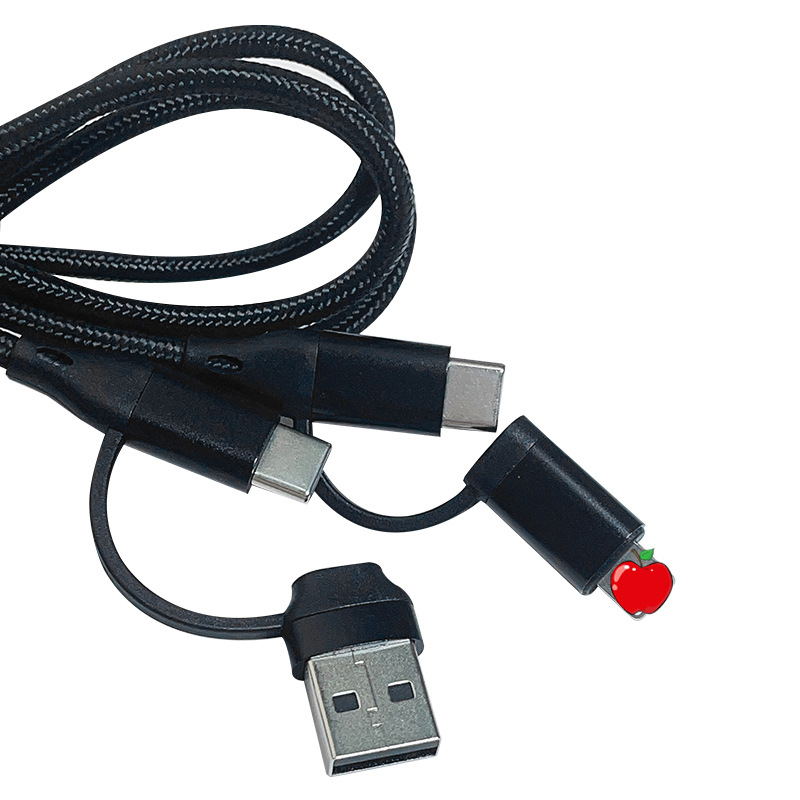
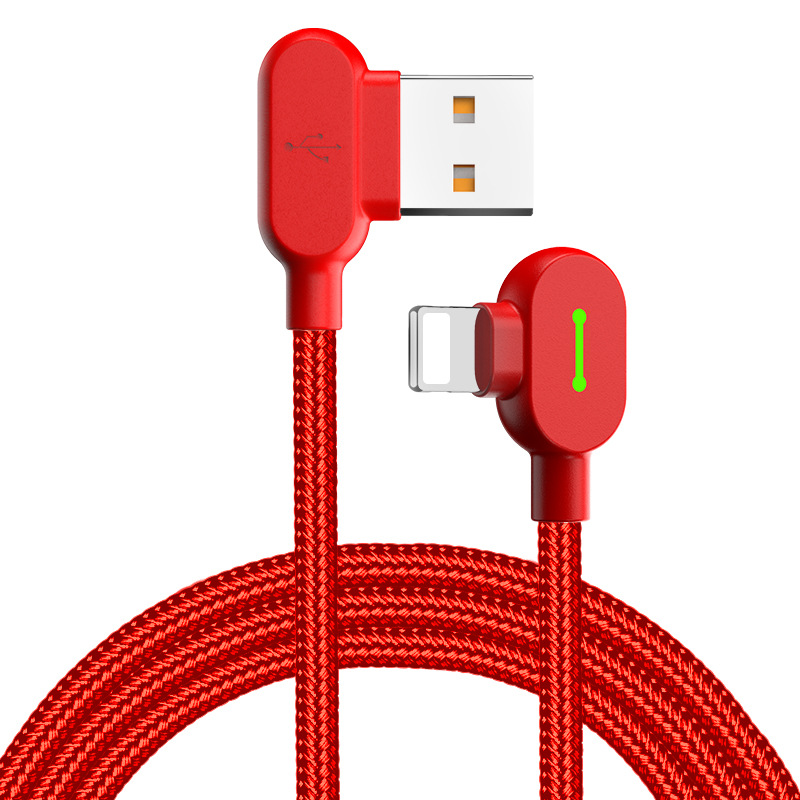
An iPhone data transfer cable is a specialized cable designed to facilitate the transfer of data between iPhones or between an iPhone and a computer. These cables typically feature a Lightning connector on one end, which plugs into the iPhone, and a USB connector on the other end, which connects to a computer or another device. Some cables may also feature USB-C connectors, allowing for compatibility with newer devices.
Why Use a Data Transfer Cable?
Using a data transfer cable offers several advantages over other methods of data transfer, such as wireless options. Here are some key benefits:
- Speed: Data transfer cables provide faster transfer speeds compared to wireless methods, making them ideal for transferring large files or backups.
- Reliability: Wired connections are generally more stable than wireless connections, reducing the risk of interruptions during the transfer process.
- Ease of Use: Connecting devices with a cable is straightforward and requires minimal setup, making it accessible for users of all technical levels.
Types of iPhone Data Transfer Cables
Lightning to USB Cable
The most common type of data transfer cable for iPhones is the Lightning to USB cable. This cable features a Lightning connector on one end and a standard USB connector on the other. It is compatible with most computers and USB chargers, making it a versatile choice for data transfer.
Lightning to USB-C Cable
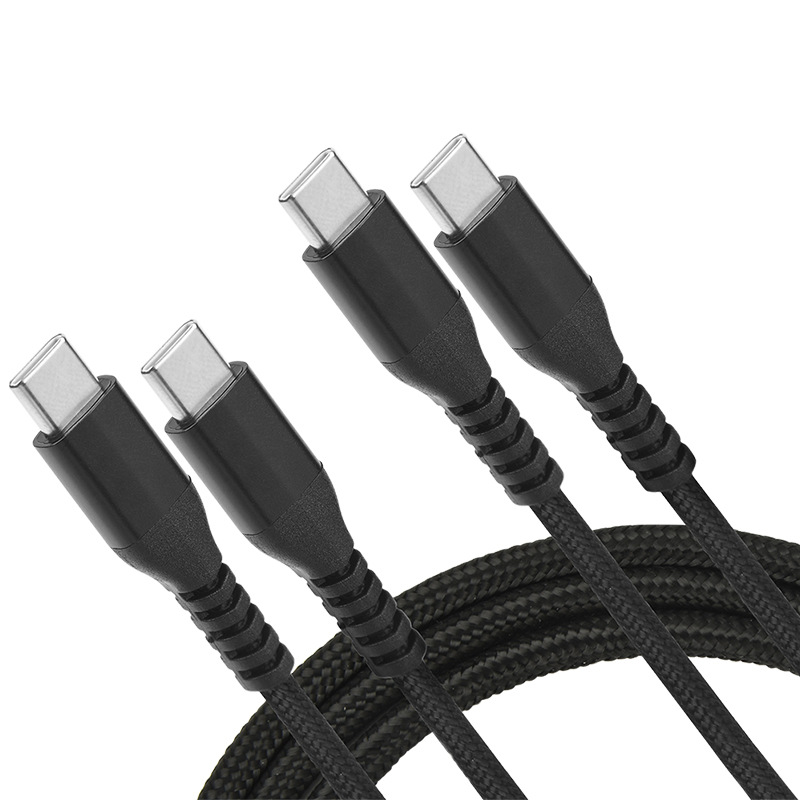
With the introduction of newer iPhone models, Lightning to USB-C cables have become increasingly popular. These cables feature a Lightning connector on one end and a USB-C connector on the other, allowing for faster data transfer speeds and compatibility with modern devices.
Multi-Port Adapters
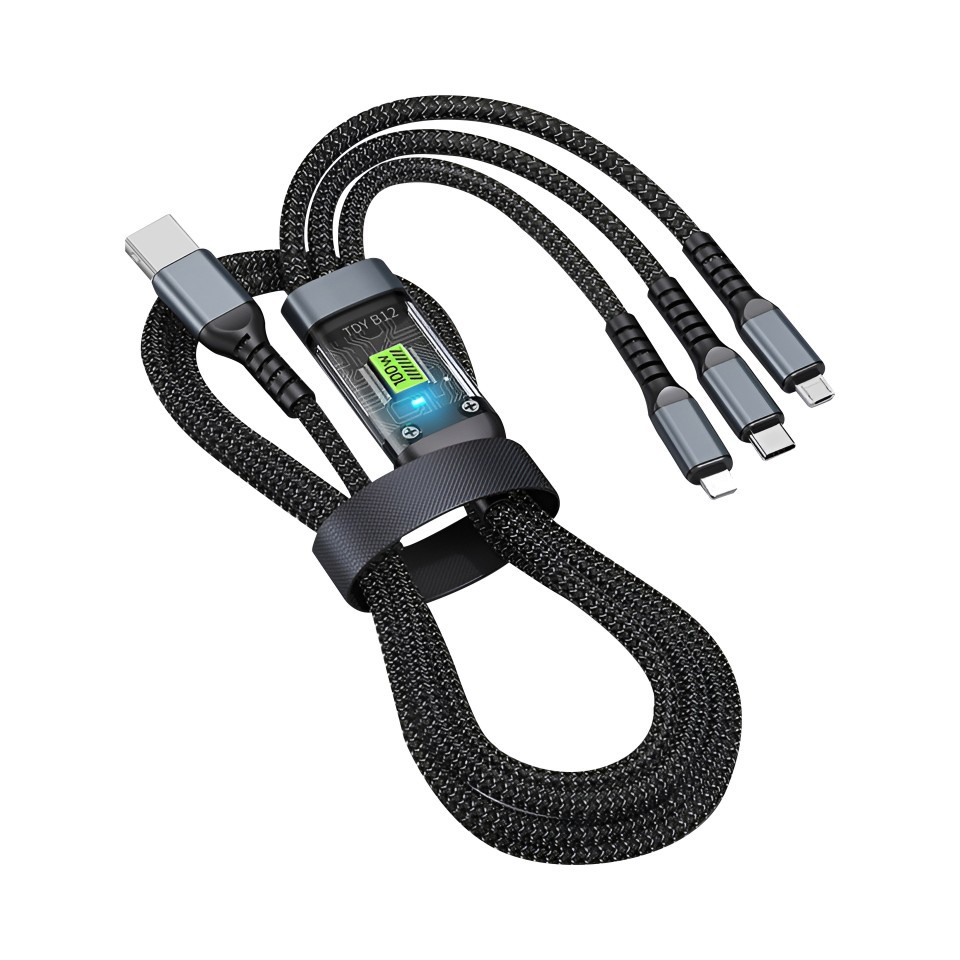
For users who need to connect multiple devices, multi-port adapters can be a great solution. These adapters often include multiple USB ports, HDMI outputs, and other connections, allowing users to transfer data while also connecting to other peripherals.
How to Use an iPhone Data Transfer Cable
Step 1: Gather Your Devices
Before starting the data transfer process, ensure you have both iPhones and the data transfer cable ready. If you are transferring data to a new iPhone, make sure it is charged and turned on.
Step 2: Connect the Devices
- Plug the Lightning Connector: Insert the Lightning connector of the data transfer cable into the Lightning port of the source iPhone (the device you are transferring data from).
- Connect to the Target Device: Insert the other end of the cable (USB or USB-C) into the target iPhone or the computer, depending on your transfer method.
Step 3: Initiate the Transfer
Once the devices are connected, you can initiate the data transfer process. There are several methods to do this:
Using iPhone Migration Tool
- Turn on the New iPhone: If you are transferring data to a new iPhone, turn it on and follow the on-screen setup instructions.
- Select Data Transfer Method: When prompted, choose the option to transfer data from another iPhone.
- Follow On-Screen Instructions: The iPhone will guide you through the process, including selecting the data you want to transfer, such as apps, photos, and settings.
Using iTunes or Finder
- Open iTunes or Finder: If you are using a computer, open iTunes (on Windows or older macOS) or Finder (on macOS Catalina and later).
- Select Your Device: Click on the device icon when it appears in iTunes or Finder.
- Choose Data to Transfer: You can choose to back up your old iPhone and then restore it to the new iPhone, or you can manually transfer specific files.
Step 4: Complete the Transfer
Once the transfer process is complete, disconnect the cable and check your new iPhone to ensure all desired data has been successfully transferred. You may need to log in to certain apps or services again, as some data may not transfer automatically.
Troubleshooting Common Issues
Cable Compatibility
Not all cables are created equal. Ensure that the data transfer cable you are using is compatible with your iPhone model. Using a non-certified cable may result in slower transfer speeds or connection issues.
Connection Problems
If you encounter issues connecting your devices, try the following:
- Check the Cable: Inspect the cable for any visible damage or wear. If the cable is frayed or damaged, it may need to be replaced.
- Restart Devices: Sometimes, simply restarting both iPhones can resolve connection issues.
- Update Software: Ensure that both devices are running the latest version of iOS. Software updates can fix bugs and improve compatibility.
Data Transfer Errors
If you experience errors during the data transfer process, consider the following:
- Free Up Space: Ensure that the target iPhone has enough storage space to accommodate the incoming data.
- Check for App Compatibility: Some apps may not transfer correctly due to compatibility issues. Check the App Store for updates or alternatives.
The Importance of Data Transfer Cables in Everyday Use
Everyday Scenarios for Data Transfer
Data transfer cables are not just for new device setups; they play a crucial role in various everyday scenarios. Here are some common situations where having a data transfer cable is beneficial:
- Upgrading to a New iPhone: When you purchase a new iPhone, transferring your data from your old device is essential. A data transfer cable simplifies this process, allowing you to move everything from contacts to photos quickly.
- Sharing Files with Friends: If you want to share photos, videos, or music with friends who also have iPhones, a data transfer cable can facilitate quick and easy sharing without relying on cloud services or Wi-Fi.
- Backing Up Data: Regularly backing up your iPhone is crucial for data security. Using a data transfer cable to connect your device to a computer allows you to create backups easily, ensuring that your important information is safe.
- Restoring Data After a Reset: If you need to reset your iPhone to factory settings, having a data transfer cable on hand makes it easy to restore your data from a backup.
The Future of Data Transfer Technology
As technology continues to evolve, so do the methods for transferring data between devices. While data transfer cables remain a reliable option, advancements in wireless technology are also changing the landscape. Here are some trends to watch for in the future:
- Faster Wireless Transfers: With the advent of technologies like Wi-Fi 6 and Bluetooth 5.0, wireless data transfer speeds are increasing, making it easier to share large files without the need for cables.
- Improved Cloud Integration: As cloud storage becomes more prevalent, users may rely less on physical cables for data transfer. However, having a cable as a backup option will still be essential for many users.
- Universal Connectivity: Future developments may lead to more universal connectors that can work across various devices, simplifying the data transfer process even further.
Conclusion
iPhone data transfer cables are essential tools for anyone looking to transfer data between devices quickly and efficiently. With various types available, users can choose the best option for their needs, whether it’s a simple Lightning to USB cable or a more advanced USB-C solution. By following the steps outlined in this article, you can ensure a smooth data transfer process, making it easier to upgrade to a new device or share files with friends.
How to purchase:https://looperbuy.com/search?keywords=home+decor+chalk+paint&globalType=1688
Frequently Asked Questions
- What types of cables are best for transferring data between iPhones?
The best options are Lightning to USB cables and Lightning to USB-C cables, depending on your device compatibility.
- How do I initiate a data transfer between two iPhones?
Connect the two iPhones using a data transfer cable, then follow the on-screen instructions on the new iPhone to initiate the transfer.
- Can I use a third-party cable for data transfer?
Yes, but ensure that the cable is certified and compatible with your iPhone model to avoid issues.
- What should I do if the data transfer fails?
Check the cable for damage, ensure both devices are updated, and verify that there is enough storage on the target device.
- Is it possible to transfer data without a cable?
Yes, you can use iCloud or other cloud services to transfer data wirelessly, but using a cable is generally faster and more reliable.
Hot Tag: iPhone data transfer cable, Lightning to USB, data migration, iPhone upgrade, seamless file transfer, cable compatibility, troubleshooting data transfer, iOS data management, USB-C connection, efficient data sharing.