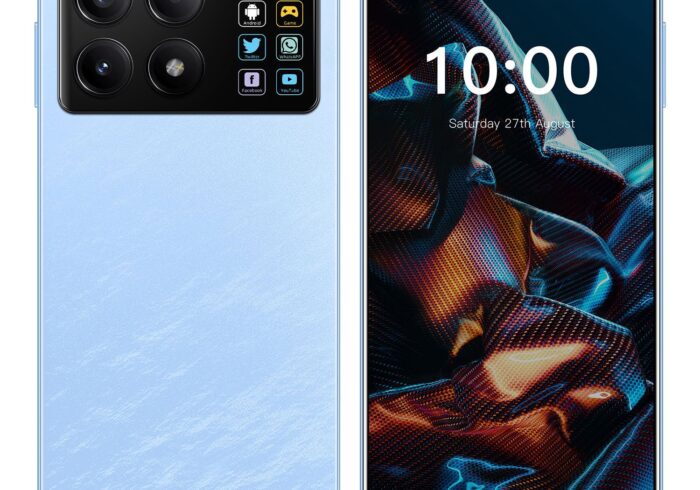
In the fast-paced world of modern smartphones, the Redmi series has established itself as a powerhouse of performance and affordability. Xiaomi’s interface, whether it be the classic MIUI or the newer HyperOS, offers a wealth of customization options and features that users love. However, there is a recurring friction point that many Redmi users encounter: the sudden appearance of unsolicited advertisements on their device screens. Whether these ads manifest as full-screen banners, unexpected notifications, or persistent pop-ups while navigating system menus, they can significantly detract from the user experience. Understanding why these ads appear and learning how to effectively manage them is crucial for regaining control over your digital environment.
Table of Contents
Understanding the Root Causes of Pop-up Ads on Redmi Devices
To effectively eliminate unwanted advertisements, one must first understand their origin. Redmi devices, like many other smartphones in the budget to mid-range segment, utilize an ad-supported business model to keep hardware costs low while providing high-end specifications. This strategy relies on integrating advertisements within the system applications themselves. Unlike stock Android, which is largely devoid of manufacturer-promoted content, Xiaomi’s ecosystem is built with these revenue streams in mind.
The Role of Pre-installed System Apps
The primary culprits behind persistent ads on Redmi phones are often the system applications pre-installed by the manufacturer. Apps such as Themes, Security, File Manager, and GetApps are designed to offer utility, but they are also monetized through ad placements. Because these are system-level applications, they have the permissions necessary to display notifications and, in some cases, pop-ups that might appear intrusive to the user. Recognizing these applications is the first step toward containment. These apps are often “sticky,” meaning they run in the background to provide updates, which also gives them a gateway to display “recommendations”—a polite term for advertisements.
Third-Party App Interference
While system apps are a common source, they are not the only ones. Sometimes, advertisements originate from third-party applications downloaded from the Google Play Store or other repositories. Often, free versions of games or utility apps include advertising SDKs that trigger pop-ups even when the app is not actively in use. If you have recently installed a new app before the ads started, it is highly likely that this application is the source of the problem. Many of these apps request “Display over other apps” permissions, which allows them to bypass the standard notification system and overlay content directly onto your active screen.
Step-by-Step Strategies to Disable System-Wide Ads
You do not have to live with a cluttered interface. Xiaomi provides several settings within the MIUI and HyperOS ecosystem to help users reduce or eliminate these interruptions. By systematically adjusting these configurations, you can achieve a much cleaner user experience. This process is not about “hacking” the phone, but rather utilizing the granular control settings that Xiaomi provides hidden away in its extensive menu system.
Revoking Authorization for MSA and Ad Services
The most effective way to curb system-level ads is to disable the core advertising services that facilitate them. The “MSA” (MIUI System Ads) service is essentially the backbone of the advertising architecture on these devices. By revoking its authorization, you significantly reduce the device’s ability to pull ad data from Xiaomi’s servers. To do this, navigate to the “Password & security” menu in your phone settings, then tap on “Authorization & revocation.” Here, find “msa” and toggle it off. You may need to wait ten seconds for the “Revoke” button to become active. Once done, the device will no longer communicate with the central ad-management server.
Managing Notifications in Individual System Apps
Even after disabling core services, individual apps may still attempt to show notifications or promotional content. You can manage this by navigating to the settings of each specific application. For instance, in the “File Manager” or “Themes” app, you will typically find a “Settings” or “About” section where a toggle labeled “Recommendations” exists. By turning these off, you effectively silence the promotional output of these specific utilities. This approach is highly effective because it targets the root of the notification rather than just muting the alert itself.
Disabling Personalized Ad Tracking
Xiaomi’s ad ecosystem is based on data profiling. By limiting this profiling, you can make the ad delivery mechanism less aggressive. Within the “Password & security” section, look for “Privacy,” then find “Ad services.” By toggling off “Personalized ad recommendations,” you are essentially telling the system to stop tracking your usage patterns to serve targeted ads. While this might not remove all ads, it often results in a significantly lower frequency of pop-ups, as the ad-serving algorithm no longer has an optimized profile to target you with.
Advanced Troubleshooting and Security Measures
If ads persist despite disabling system-level recommendations, it is time to look at deeper system settings and potential security risks. Malware or aggressive adware can sometimes disguise itself as legitimate system components, leading to persistent pop-ups that seem impossible to remove.
Identifying and Removing Malicious Applications
If you are experiencing frequent, aggressive pop-ups that appear randomly while you are using unrelated apps or even on the home screen, you may have installed a malicious application. The first step is to check your “Recently used apps” list when a pop-up occurs. If you see an app icon that you do not recognize, that is likely the source. You can further verify this by booting your phone into Safe Mode. This will prevent third-party apps from running. If the pop-ups stop while in Safe Mode, it confirms that a third-party app is the culprit. You can then systematically uninstall recently added applications until the issue is resolved.
Monitoring Permission Usage
Modern Android versions provide a “Privacy Dashboard” that shows which apps have accessed sensitive permissions, such as the ability to draw over other apps. This is a crucial tool for identifying the source of intrusive ads. If you notice an app you rarely use has the “Display over other apps” permission enabled, revoke it immediately. This permission is the most common way that aggressive adware displays full-screen content that blocks your view of other applications.
Utilizing DNS Filtering for Network-Level Ad Blocking
For users who want a more robust solution, implementing a private DNS can be an effective method to block advertisements across the entire device. By changing your phone’s DNS settings to a provider that blocks known ad-serving domains, such as AdGuard DNS, you can prevent your device from successfully loading ad content from the internet. This method is highly effective because it intercepts the requests before they ever reach your phone’s screen. Go to “Connection & sharing,” select “Private DNS,” and enter “dns.adguard.com.” This creates a filter at the network level that effectively scrubs ad requests before they are rendered on your display.
Maintaining a Clean Device Environment
Beyond the initial setup of disabling ads, long-term maintenance is required to keep your phone free of clutter. Xiaomi devices frequently receive system updates that may inadvertently reset some of these settings or introduce new features with new “promotional” toggles enabled by default.
Periodic Review of App Permissions
It is a good habit to review your app permissions on a monthly basis. As you download new tools and games, they may request permissions that weren’t there at the start. Navigating to “Apps” -> “Permissions” allows you to see a bird’s eye view of what apps are allowed to run in the background, send notifications, or draw over other apps. By keeping a strict lid on these, you prevent “ad creep,” where apps slowly start to display more content as they gain updates or permissions.
Optimizing Background Process Limits
If you notice your phone is sluggish alongside the ads, it is likely that many apps are running in the background, competing for resources and pulling ad data. Using the “Developer Options,” you can limit background processes. While this is a more advanced step, it can improve battery life and reduce the frequency at which ad-serving apps “wake up” to push content to your screen. Reducing the background activity prevents these apps from constantly checking their servers for new advertisements to display.
The Role of System Cache and Data Management
Sometimes, the remnants of cached ads can persist even after you have changed your settings. It is a good practice to occasionally clear the cache for your system apps. Go to “Apps” -> “Manage apps,” and select the apps you suspect are responsible for ads. Clearing their data and cache forces them to reset their configuration, often clearing out lingering ad-display scripts that were cached during the period when ads were enabled. Note that this may reset your preferences within those apps, so be prepared to re-configure them to your liking.
The Future of Ad Management on Xiaomi Devices
As Xiaomi transitions more devices to the HyperOS platform, the company has indicated a move toward a cleaner interface with fewer system-level interruptions. Users should keep their devices updated to the latest software version, as these updates often include improvements to the system’s background behavior and sometimes remove the most intrusive ad-serving modules entirely. Regular system maintenance, combined with proactive permission management, is the best way to ensure your Redmi device stays fast and free from unwanted screen distractions.
Conclusion
Managing unwanted pop-up ads on your Redmi device is a manageable task once you understand the balance between the manufacturer’s ad-supported business model and the user’s need for a clean interface. By revoking authorization for system ad services, adjusting notification settings within individual apps, identifying problematic third-party installations, and utilizing network-level filtering, you can significantly enhance your user experience. Taking these proactive steps ensures that your device remains a powerful tool rather than a platform for persistent interruptions, allowing you to enjoy your smartphone just as intended.
How to purchase:Online B2B sourcing platform, China purchase, Chinese suppliers – LooperBuy
Related Questions & Answers
· Why do my Redmi phone screen pop-up ads keep returning after I turn them off?
Sometimes, after a system update, certain permissions and settings can be reset to their default state. If you find ads returning, it is recommended to revisit the “Recommendations” toggles in your primary system apps to ensure they remain disabled, or check if the “MSA” service has had its authorization reactivated.
· Is it safe to revoke authorization for the MSA service?
Yes, it is perfectly safe to revoke authorization for the MSA (MIUI System Ads) service. This action simply restricts the device from fetching and displaying advertising content from Xiaomi’s network, and it will not negatively affect the core functionality or performance of your phone.
· Can third-party apps cause pop-ups even if they are not open?
Yes, many free applications contain background services that trigger advertisements based on specific intervals or triggers. If you notice ads appearing when you are on your home screen or using a different app, it is a strong indicator that an installed third-party app is responsible.
· What is the most effective way to block ads on my Redmi phone without root access?
The most effective method without root access is to combine system-level settings adjustments (disabling “Recommendations” and revoking “MSA”) with the use of a private DNS, such as AdGuard DNS, which blocks ad traffic at the network level for all applications.
· Will uninstalling system apps stop the ads?
It is generally not recommended and often not possible to uninstall essential system applications. Instead of attempting to uninstall them, you should focus on clearing their cache and disabling their notification and recommendation permissions to achieve the same result without risking system instability.
Hot Tags: Redmi System Optimization; MIUI Ads Removal; HyperOS Privacy Settings; Android Notification Management; Xiaomi Adware Solutions; Smartphone Performance Enhancement; Private DNS Ad Blocking; Removing Invasive Pop-ups; Mobile Security Best Practices; Disabling Pre-installed Bloatware; Ad-free Android Experience; Background Data Usage Control; Troubleshooting Third-party Adware; Custom ROM Ad Blocking; System Service Permissions; Malware Detection and Removal; Network Level Filtering; Reducing Digital Interruptions; Screen Overlay Management; App Recommendation Settings; Managing Xiaomi System Apps; Digital Wellbeing Strategies; Internet Traffic Optimization; Proactive Device Maintenance; Securing Mobile Interfaces; Advanced Android Configuration; Streamlining User Experience; Eliminating Unsolicited Notifications; Device Cleanup Procedures; Protecting Personal Data Privacy