The computer keyboard is the primary interface through which we interact with our digital world. Among the sea of keys, from the ubiquitous QWERTY layout to the specialized modifier keys, there often lies one enigma that confuses even seasoned users: the “Fn” key. Often relegated to a corner of the keyboard, the Fn key acts as a gateway to enhanced productivity, device control, and system customization. Understanding its role is not just about learning a new shortcut; it is about reclaiming control over your hardware interface and optimizing your daily digital workflow.
Table of Contents
Understanding the Fundamentals of the Fn Key
At its core, the Fn key is an abbreviation for “Function.” It is a modifier key—similar to Shift, Ctrl, or Alt—but it functions with a specific purpose designed for hardware efficiency.
What Is the Fn Key and Why Does It Exist?
The Fn key exists primarily as a solution to a design challenge: how to fit more functionality onto a compact space without increasing the physical size of the keyboard. On laptops, where space is at a premium, it is impossible to provide a dedicated physical button for every single system function. The Fn key allows a single physical key to serve two, or even three, different purposes, effectively doubling the capabilities of your top row of function keys (F1 through F12) and other integrated keys on your board. This architectural brilliance enables manufacturers to maintain a slim, portable form factor while still offering robust control over hardware features.
How the Fn Modifier Works
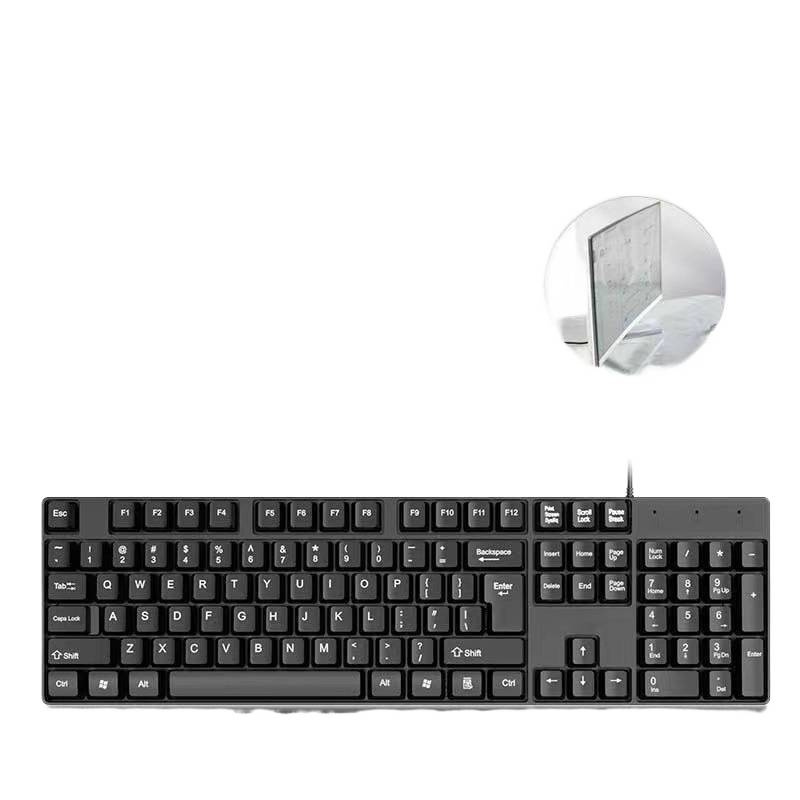
When you press a key on your keyboard, your computer registers a specific signal. When you press the Fn key in combination with another key, you are essentially telling the keyboard controller to send a different, secondary command instead of the standard signal. This is why the Fn key is so essential for managing features that don’t have dedicated keys, such as adjusting screen brightness, toggling external displays, or controlling media playback. It is a logic-gate trigger that switches the output mapping of your key matrix, allowing for deeper system integration without cluttering your workspace with extra buttons.
The Practical Applications of the Fn Key
Once you begin utilizing the Fn key, you will find that it unlocks a faster way to navigate your operating system and hardware settings. It is the bridge between your intentions and the hardware’s execution.
Media and System Control Shortcuts
On most modern laptops, the top row of keys (F1–F12) comes pre-configured with icons representing system functions. For instance, you might see an icon for a speaker, a sun, or a track forward symbol. These icons denote the “secondary” function.
- Volume Management: Frequently, Fn + F11 or F12 will increase or decrease your system volume, allowing you to react quickly to incoming notifications or audio changes.
- Brightness Adjustment: Using Fn alongside specific function keys allows for the granular control of screen brightness, saving your eyes during night sessions and conserving battery life during travel.
- Playback Controls: Whether you are listening to music, attending a virtual meeting, or watching a video, Fn combinations often include play, pause, skip, and stop functions, putting the multimedia experience at your fingertips without needing to switch back to the browser or media player window.
Hardware Toggles and Connectivity
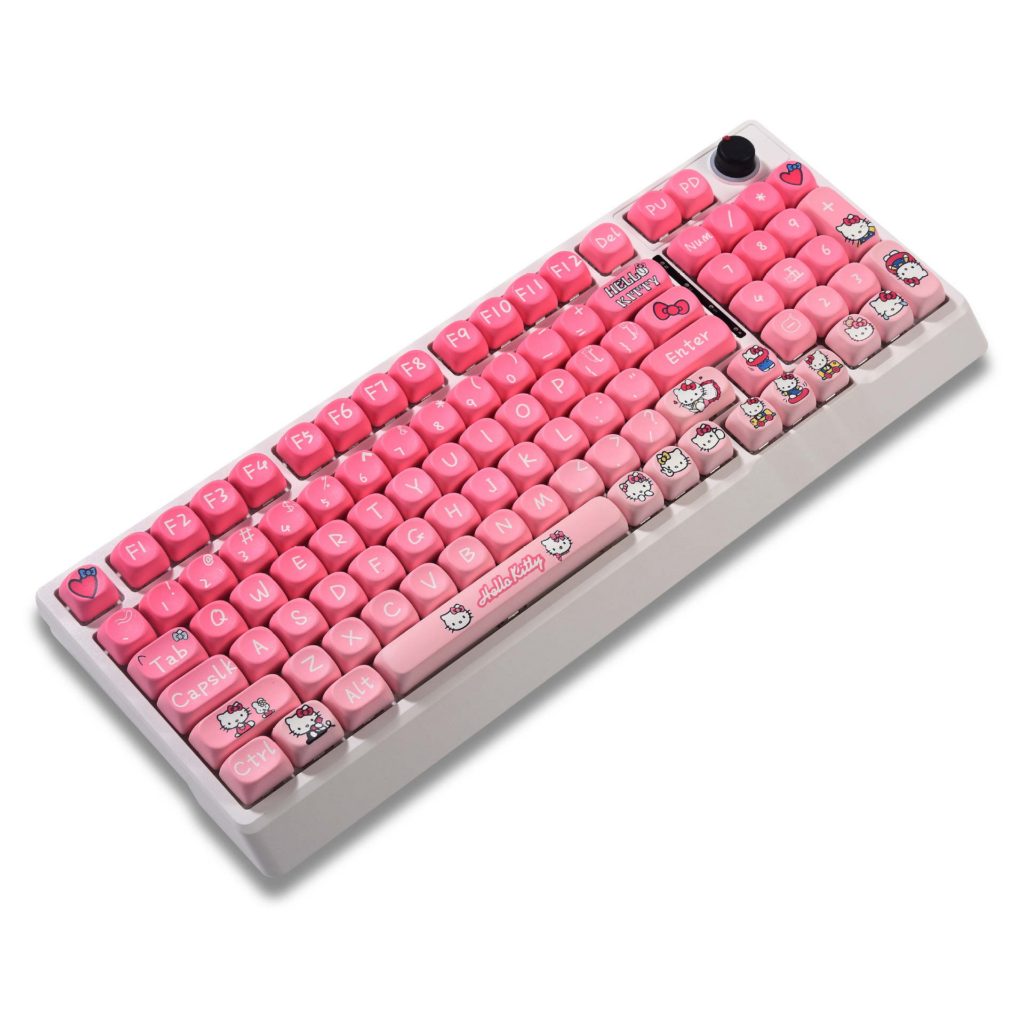
Beyond media, the Fn key is often the master switch for hardware radios. You can often toggle Wi-Fi, Bluetooth, or even put your computer to sleep using a simple Fn key combination. This is particularly useful in environments where you need to quickly disconnect from the internet or toggle external outputs when preparing for a presentation. Many keyboards also use the Fn key to activate “Airplane Mode,” a critical feature for frequent flyers, or to disable the trackpad if you are using an external mouse and want to avoid accidental palm clicks.
Advanced Usage and Customization Strategies
As you master the basics, you may find that the default behavior of your Fn keys does not perfectly match your professional needs. The beauty of modern computing is the ability to mold your interface to your habits.
Navigating the Ecosystem of Key Mapping
Many power users go beyond the manufacturer’s defaults. Through software utilities—such as AutoHotkey for Windows or Karabiner-Elements for macOS—you can effectively remap what the Fn key does or what specific combinations trigger. Imagine setting Fn + C to open your favorite code editor, or Fn + W to open your browser’s most used page. By treating the Fn key as a custom layer in your workflow, you can automate repetitive tasks, turning a simple keyboard into a personalized control deck that drastically reduces your “time-to-action” for common digital operations.
Understanding Keyboard Layout Variations
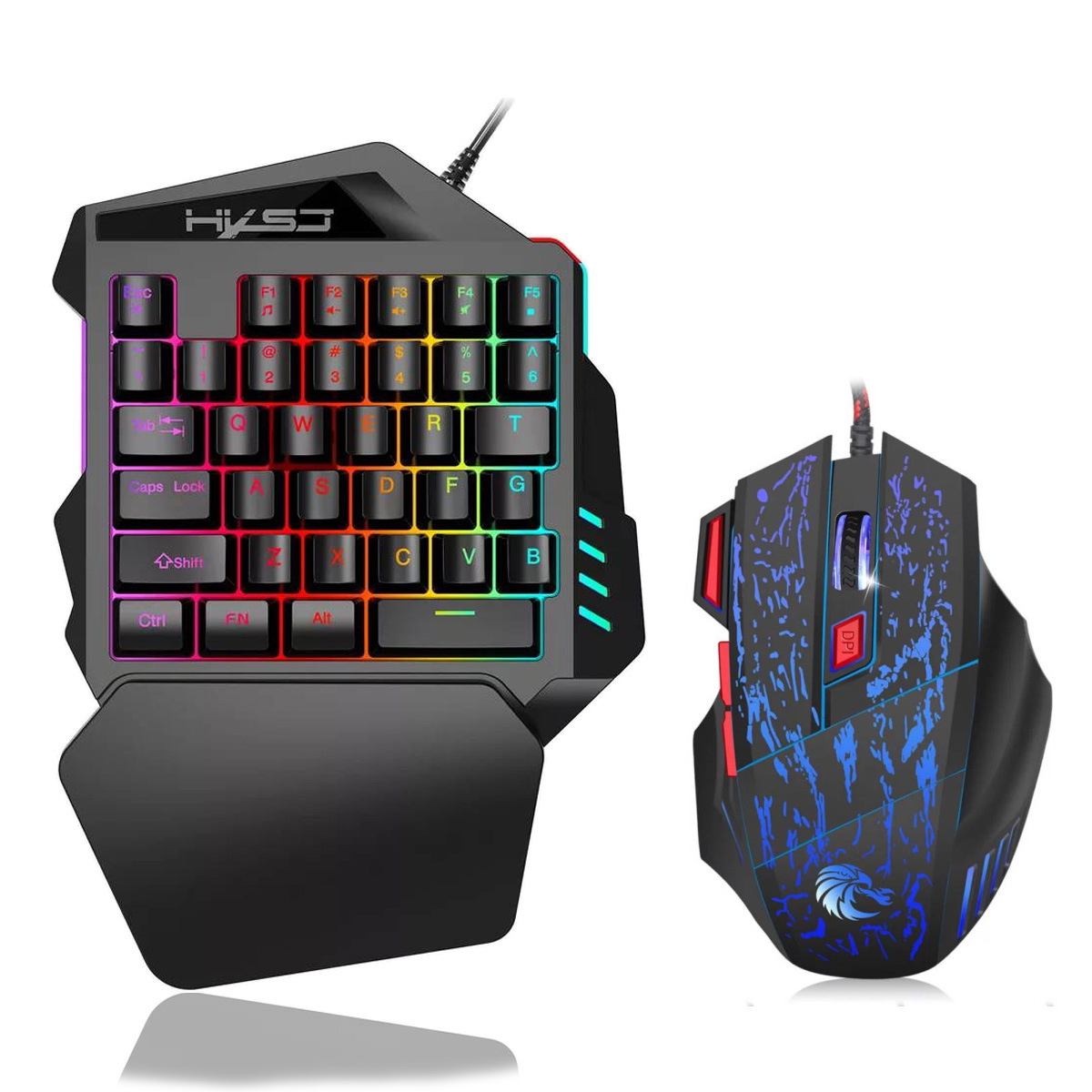
It is also worth noting that the Fn key’s location varies significantly between keyboard layouts. On some ultrabooks, you might find the Fn key in the bottom left, while on other models, it might be tucked between the right Alt and Ctrl keys. Some ergonomic mechanical keyboards even allow you to program the Fn key to a dedicated thumb cluster. Learning the muscle memory for your specific device is a vital step in becoming a high-level user. If you switch between a desktop mechanical keyboard and a laptop, this adjustment period is normal. Some users even utilize external keyboards with “Fn-layer” support to bridge the gap between their desktop and laptop experiences, ensuring their shortcuts remain consistent no matter the hardware.
Customizing and Troubleshooting Your Fn Experience
Because the Fn key is so closely tied to hardware, its behavior can sometimes vary, or in some cases, feel counter-intuitive.
Why Fn Behavior Varies Between Brands
It is important to note that the Fn key behavior is manufacturer-dependent. A keyboard from Dell might map its Fn keys differently than one from Apple or Lenovo. This inconsistency can lead to confusion when switching between devices. Some manufacturers offer BIOS settings that allow you to “lock” or “invert” the behavior of the Fn key, allowing the F1–F12 keys to act as multimedia keys by default, or vice versa. Recognizing that your keyboard’s behavior is controlled by firmware/BIOS settings rather than the OS itself is the first step toward fixing “missing” functions.
How to Lock or Invert the Fn Key
If you find yourself constantly holding the Fn key to access the media functions, you might prefer to “lock” the Fn behavior.
- The Lock Key: Some keyboards feature a dedicated “Fn Lock” key, which often looks like a padlock with the letters “Fn” inside. Pressing this (often via a combination like Esc + Fn) toggles the default behavior.
- BIOS/System Settings: If your keyboard lacks a physical lock key, you can often enter your computer’s BIOS or use the manufacturer’s keyboard management software to change the default behavior of the function keys. This is particularly common in gaming laptops, where users often prefer the function keys to prioritize system commands for lighting and fan speeds, while others prefer the media keys to be the primary output.
The Future of the Fn Key and Keyboard Design
As we move toward more integrated digital environments, the role of the Fn key is evolving. We are seeing more keyboards incorporating dedicated “Macro” keys, OLED screens on keys, and even touch-sensitive bars. Yet, the reliability of the physical Fn key remains unmatched. It is a low-latency, physical solution to software complexity. Whether you are a student, a creative professional, or a software engineer, the Fn key remains one of the most under-utilized assets for managing your digital environment. By spending just a few minutes configuring it to your specific needs, you are not just typing faster; you are thinking and operating at the speed of your machine.
Conclusion
The Fn key is an essential component of modern computing, acting as a bridge between the physical constraints of keyboard design and the digital requirements of a modern user. By understanding how this modifier key operates, you can significantly enhance your workflow, streamline your system controls, and better manage your hardware settings. While it may appear to be a small or insignificant button, mastering the Fn key is a simple yet powerful way to become more proficient and efficient with your computer. Investing time in learning its nuances will undoubtedly pay off in increased comfort and productivity.
How to purchase:Online B2B sourcing platform, China purchase, Chinese suppliers – LooperBuy
Article Summary
This article provides an in-depth exploration of the “Fn” (Function) key found on computer keyboards. It covers the fundamental role of the Fn key as a modifier designed to expand keyboard functionality in compact spaces like laptops. The guide details how to use these combinations for media control, screen adjustments, and hardware toggles, while addressing common brand-specific differences in operation. Furthermore, the text offers practical advice on how to troubleshoot and customize Fn key behavior through system settings or “Fn Lock” features, ultimately helping users improve their overall computing productivity by mastering this often-overlooked tool.
Hot Tags:
Computer Keyboard; Fn Key; Function Key; Keyboard Shortcuts; Laptop Productivity; Modifier Keys; Hardware Control; Tech Tips; Keyboard Layout; User Interface; Keyboard Settings; System Optimization; Multimedia Keys; Key Mapping; Keyboard Customization; Productivity Hacks; Laptop Hardware; Input Devices; Digital Workflow; Keyboard Maintenance; Tech Education; Keyboard Basics; Peripheral Management; Shortcut Keys; Device Settings; Laptop Features; Keyboard Functionality; Operating System Integration; Computer Peripherals; Efficient Computing
Related Questions & Answers
· Why do some function keys perform different actions depending on the brand?
The specific assignments for function keys and the Fn modifier are programmed by the manufacturer at the firmware level. Different companies prioritize different shortcuts, such as quick-access to settings or screen-switching, based on their target user base.
· How do I know if my keyboard has an “Fn Lock” feature?
Check your keyboard for a key that has a small padlock icon, often on the Escape (Esc) key or one of the function keys. If you see this icon, you can usually lock the function keys by pressing the Fn key and that specific key simultaneously.
· Can I change what my Fn key combinations do?
Yes, on many modern laptops, manufacturers provide software (like Lenovo Vantage, HP Support Assistant, or Logitech Options) that allows you to remap function keys or change their default behavior to better fit your workflow.
· Why does my F1–F12 key just trigger a system action instead of the standard software command?
This is likely because your keyboard is set to “Media/Hardware” mode by default. You can usually toggle this by using the Fn key in combination with the function key, or by enabling/disabling the “Fn Lock” feature in your system BIOS.
· Is the Fn key the same on Windows and macOS?
Generally, yes, it serves the same modifier purpose. However, macOS often defaults to function key behavior for system tasks like volume and brightness, and uses the Fn key to access the traditional F1–F12 inputs, which is the inverse of many Windows configurations.