Table of Contents
Introduction
Screen blinking is a common issue faced by many Redmi phone users. The flickering screen not only affects the user experience but can also lead to visual discomfort, especially when using the device for extended periods. This issue may arise due to software glitches, hardware damage, or display settings. In this article, we will explore the potential causes of the Redmi phone screen blinking issue and provide detailed solutions to help users resolve the problem.
Potential Causes of Redmi Phone Screen Blinking
Software Issues
- System Glitches: Temporary system malfunctions or software conflicts may cause the screen to blink. For example, after installing certain apps or updating the system, the screen may start flickering.
- Outdated System or Apps: An outdated Android OS or apps can lead to compatibility issues, potentially causing screen blinking.
- Corrupted Cache: Cache files generated by apps over time may become damaged, affecting the normal functioning of the device and resulting in screen flickering.
Hardware Issues
- Damaged Display: Physical damage to the display, such as cracks or scratches, or issues with the display components like the backlight or display cable, may cause the screen to flicker.
- Faulty Screen Protector: A low – quality or damaged screen protector might interfere with the display’s performance, leading to screen blinking.
Display Settings
- Auto – Brightness Issues: The auto – brightness feature adjusts the screen brightness based on ambient light conditions. However, if the light sensor is faulty or the algorithm is flawed, frequent brightness changes may cause screen flickering.
- Reading Mode or Blue Light Filter: These modes can alter the screen’s color temperature and brightness. If the settings are incorrect or the device is unable to process the adjustments properly, screen flickering may occur.
Software Solutions for Redmi Phone Screen Blinking
Restarting Your Phone
A simple restart can often resolve minor system glitches. Press and hold the power button for 5 seconds, then drag the slider down to reboot. Alternatively, you can drag the slider up to power off and then press the power button again to restart the device. Restarting helps clear temporary memory and may eliminate screen flickering caused by software conflicts or glitches.
Disabling Auto – Brightness
Go to Settings > Display & brightness, and disable the automatic brightness and sunlight mode features. Instead, manually adjust the brightness to a stable level. If the screen flickering issue is caused by the auto – brightness feature, disabling it may resolve the problem.
Enabling Anti – Flicker Mode
Xiaomi has introduced an anti – flicker mode to address screen flickering issues in OLED displays. Navigate to Settings > Display & brightness > Anti – flicker mode and enable the anti – flicker option. This mode stabilizes the current or voltage supplied to the OLED pixels, reducing screen flickering, particularly at lower brightness levels.
Disabling Reading Mode
Reading mode or blue light filter can sometimes cause screen flickering. Go to Settings > Display & brightness > Reading mode and toggle off the reading mode. Disabling this feature may alleviate screen flickering issues.
Updating the System and Apps
Check for and install available system updates. Android OS updates often include bug fixes and performance improvements, which may resolve screen flickering issues. Additionally, update all your apps, especially those frequently used when the flickering occurs. Outdated apps can sometimes conflict with the system and cause display problems.
Clearing Cache
Go to Settings > Apps > Manage Apps. Select each app and tap Clear data. Choose either Clear all data or Clear cache. You can also clear the cache partition to free up system memory and optimize resources, potentially resolving screen flickering caused by corrupted cache files.
Booting into Safe Mode
Boot your device into Safe Mode, which disables third – party apps while allowing only system apps to run. If the screen no longer flickers in Safe Mode, it indicates that a third – party app is causing the issue. Try uninstalling recently installed apps to identify the problematic one.
Resetting to Factory Settings
If the above methods fail to resolve the issue, consider resetting your device to factory settings. This action will erase all data and restore the device to its default state. Before proceeding, ensure you back up your data. Navigate to Settings > About phone > Factory reset, tap Erase all data, and follow the prompts to complete the reset.
Hardware Solutions for Redmi Phone Screen Blinking
Inspecting the Display
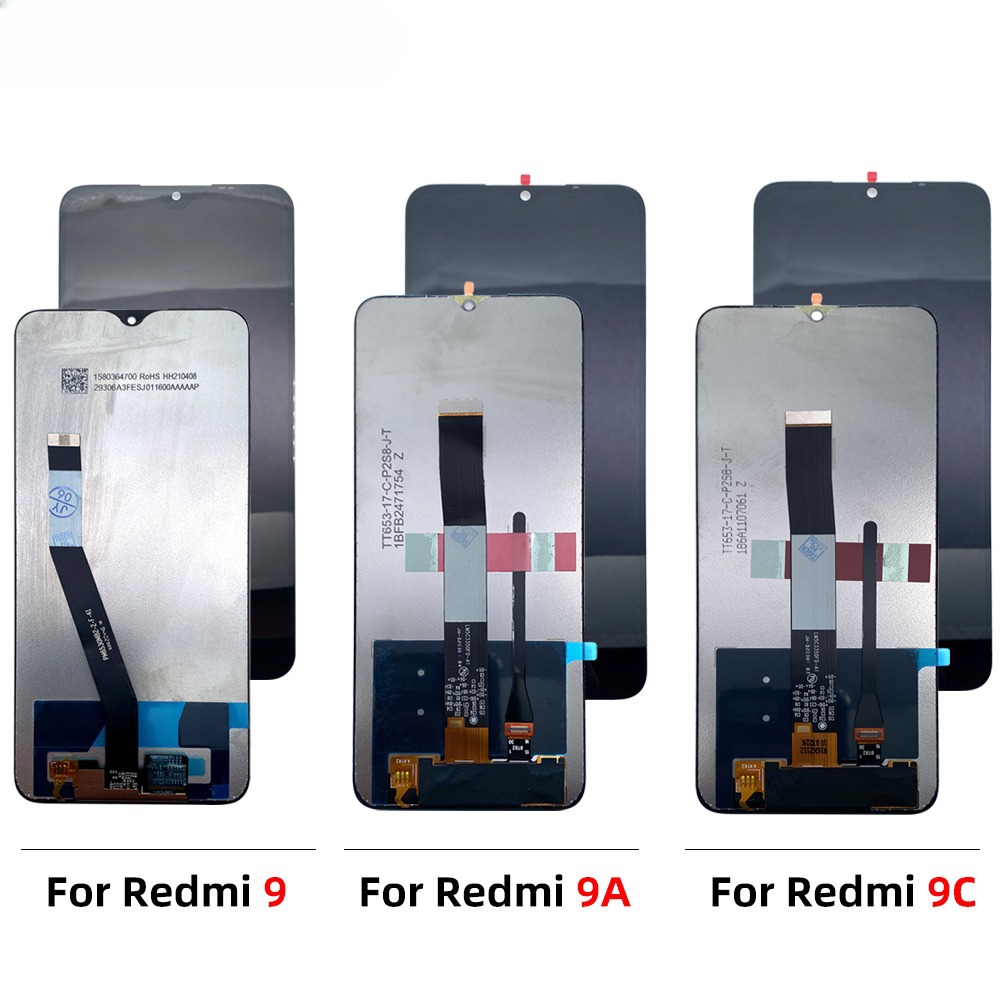
Carefully examine the screen for signs of damage, such as cracks or scratches. If the display is visibly damaged, it may require replacement. If the screen appears intact but the flickering persists, the issue might lie in the display components, such as the backlight or display cable.
Replacing the Display
If the display is damaged or malfunctioning, replacing it is the most effective solution. Visit an authorized Xiaomi service center or a reputable repair shop to have the display replaced by a professional technician.
Checking the Screen Protector
If you have a screen protector installed, try removing it to see if the screen flickering stops. If the issue resolves, it indicates that the screen protector is causing the problem. Replace it with a high – quality screen protector or consider not using one.

Preventive Measures for Redmi Phone Screen Blinking
Maintaining the Phone
- Avoid Physical Damage: Handle your phone with care to prevent drops or impacts that could damage the display.
- Regular Updates: Keep your system and apps updated to ensure optimal performance and compatibility.
Proper Use
- Avoid Overusing Battery – Intensive Apps: Excessive use of apps like games or video players may drain the battery and strain the display. Take breaks and avoid prolonged usage.
- Use in Suitable Environments: Avoid using your phone in extreme temperatures or high – humidity conditions, as these can affect the display’s performance.
Conclusion
Screen blinking in Redmi phones can be caused by various factors, including software glitches, hardware damage, and display settings. By following the solutions outlined in this article, most users should be able to resolve the screen flickering issue. If the problem persists despite trying multiple solutions, it is advisable to seek help from a professional technician. Regular maintenance and proper usage habits can also help prevent screen blinking and ensure your Redmi phone operates smoothly.
How to Purchase:https://looperbuy.com/search?keywords=redmi+phone+screen+blinking
Frequently Asked Questions
Q: What should I do if my Redmi phone’s screen flickers after updating the system?
A: First, try restarting your phone to clear temporary glitches. If the flickering continues, disable auto – brightness and reading mode, enable anti – flicker mode, and update your system and apps. If these steps do not resolve the issue, consider a factory reset.
Q: Can a screen protector cause my Redmi phone’s screen to flicker?
A: Yes, a low – quality or damaged screen protector may interfere with the display’s performance and cause screen flickering. Try removing the screen protector to see if the issue resolves. If it does, replace it with a high – quality screen protector.
Q: What should I do if my Redmi phone’s screen flickers after installing a new app?
A: Uninstall the newly installed app and restart your phone. If the flickering stops, the app is likely the culprit. Additionally, check if the app has any updates and install them to see if the issue resolves.
Q: Can hardware damage cause screen flickering in Redmi phones?
A: Yes, hardware damage such as a cracked display or a faulty display cable may lead to screen flickering. If software solutions do not work, the issue is likely hardware – related. Visit an authorized Xiaomi service center for inspection and repair.
Q: How can I prevent screen flickering in my Redmi phone?
A: Maintain your phone by keeping it updated, avoiding physical damage, and using it in suitable environments. Regularly check for and install system updates and app updates. Handle your phone carefully to prevent drops or impacts. Avoid using your phone in extreme temperatures or high – humidity conditions.
Hot Tags: Redmi Phone Screen Blinking; Redmi Phone Screen Flickering; Redmi Phone Screen Blinking Troubleshooting; Redmi Phone Screen Blinking Issue Solutions; Redmi Phone Display Problems; Redmi Phone Screen Blinking Causes; Redmi Phone Screen Blinking Fixes; Redmi Phone Screen Blinking Prevention; Redmi Phone Screen Blinking After Update; Redmi Phone Screen Blinking Due to Software