A black screen on a Samsung phone can be frustrating, especially when it happens unexpectedly. This issue can arise from various causes, including hardware malfunctions, software glitches, or physical damage. Understanding these causes is crucial for finding the right solution.
Table of Contents
Causes of a Black Screen
Hardware Issues
Hardware problems are common causes of a black screen. These can include issues with the display itself, such as damaged LCD connectors, or problems with other internal components like the battery or charging port. Physical damage from drops or spills can also lead to a black screen by damaging the display or other critical components.
Software Glitches
Software-related issues are another frequent cause. Outdated or corrupted system software can lead to conflicts that result in a black screen. Additionally, installing incompatible apps or experiencing system crashes can also cause this problem.
Battery and Charging Issues
A faulty or drained battery can prevent the phone from powering on properly, leading to a black screen. Similarly, a dirty or obstructed charging port can prevent the device from charging correctly.
Solutions to Fix a Black Screen
Charging the Device
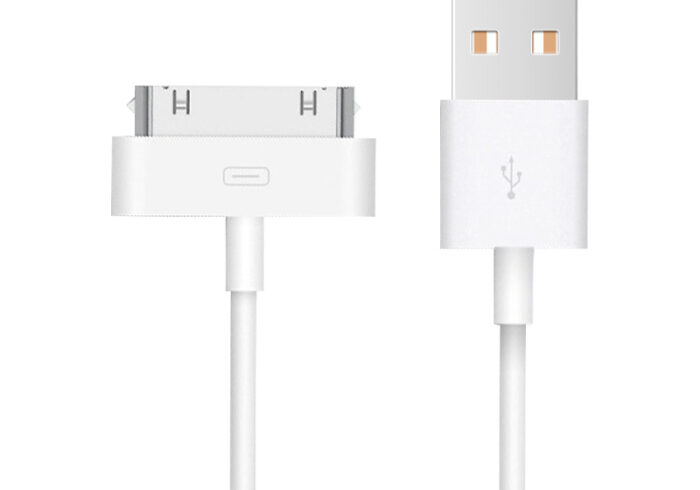
The first step in troubleshooting a black screen is to ensure the device is properly charged. Check the charging port for debris and use a different charger and cable if possible. Charge the device for at least 30 minutes before attempting to turn it on.
Removing the Battery (If Applicable)
For older Samsung models with removable batteries, removing and reinserting the battery can sometimes resolve temporary glitches. This process involves turning off the device, removing the back cover, taking out the battery, waiting a few minutes, and then reinserting it.
Cleaning the Charging Port
A dirty charging port can prevent the device from charging. Use a soft brush or a toothpick to gently remove any debris from the port.
Forced Restart
Performing a forced restart can often resolve software-related issues. This involves holding the Power button and the Volume Down button simultaneously for about 7 to 10 seconds. This action can help restart the device and potentially resolve the black screen issue.
Using System Repair Tools
If the issue persists, using tools like Dr.Fone – Android System Repair can help fix deeper system problems. This software can diagnose and repair various Android system issues, including a black screen.
Hard Reset
As a last resort, performing a hard reset can resolve software conflicts by resetting the device to its factory settings. However, this will erase all data, so it’s crucial to back up your data first if possible.
Contacting Samsung Support
If none of the above methods work, it may be necessary to contact Samsung’s support center for further diagnosis and potential hardware repair or replacement.
Preventing Future Black Screen Issues
Preventing black screen issues involves maintaining your device properly. Regularly updating your software, managing storage, and avoiding physical damage can help minimize the risk of encountering this problem.
Conclusion
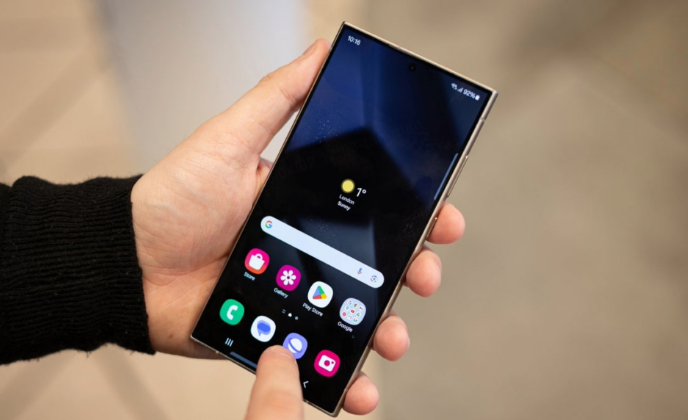
A black screen on a Samsung phone can be caused by a variety of factors, ranging from hardware malfunctions to software glitches. By understanding these causes and applying the appropriate solutions, users can often resolve the issue without needing professional assistance. However, if the problem persists, seeking help from Samsung’s support team may be necessary.
How to Purchase:https://looperbuy.com/search?keywords=samsung+phone+screen+gone+black
Frequently Asked Questions
- Why does my Samsung phone screen go black?
- The screen can go black due to hardware issues like a faulty display or battery, software glitches from outdated or corrupted software, or physical damage from drops or spills.
- How do I fix a black screen on my Samsung phone?
- Try charging the device, cleaning the charging port, performing a forced restart, or using system repair tools. If these methods fail, consider a hard reset or contacting Samsung support.
- Can a black screen be fixed without losing data?
- In some cases, yes. Methods like charging the device, cleaning the charging port, or performing a forced restart can resolve the issue without data loss. However, a hard reset will erase all data.
- What if my Samsung phone screen is black but the phone is still on?
- This could indicate a hardware issue with the display. Try a forced restart or seek professional repair if the issue persists.
- How do I prevent my Samsung phone screen from going black?
- Regularly update your software, manage storage to prevent conflicts, and handle your device carefully to avoid physical damage.